Cancel Subscription
How to Cancel Your CloudRent Subscription
You can cancel your CloudRent subscription directly from your account settings at any time.
Follow the steps below to cancel your subscription.
Step 1: Log in to CloudRent
Sign in to your CloudRent account using your usual login details.
Step 2: Open Settings
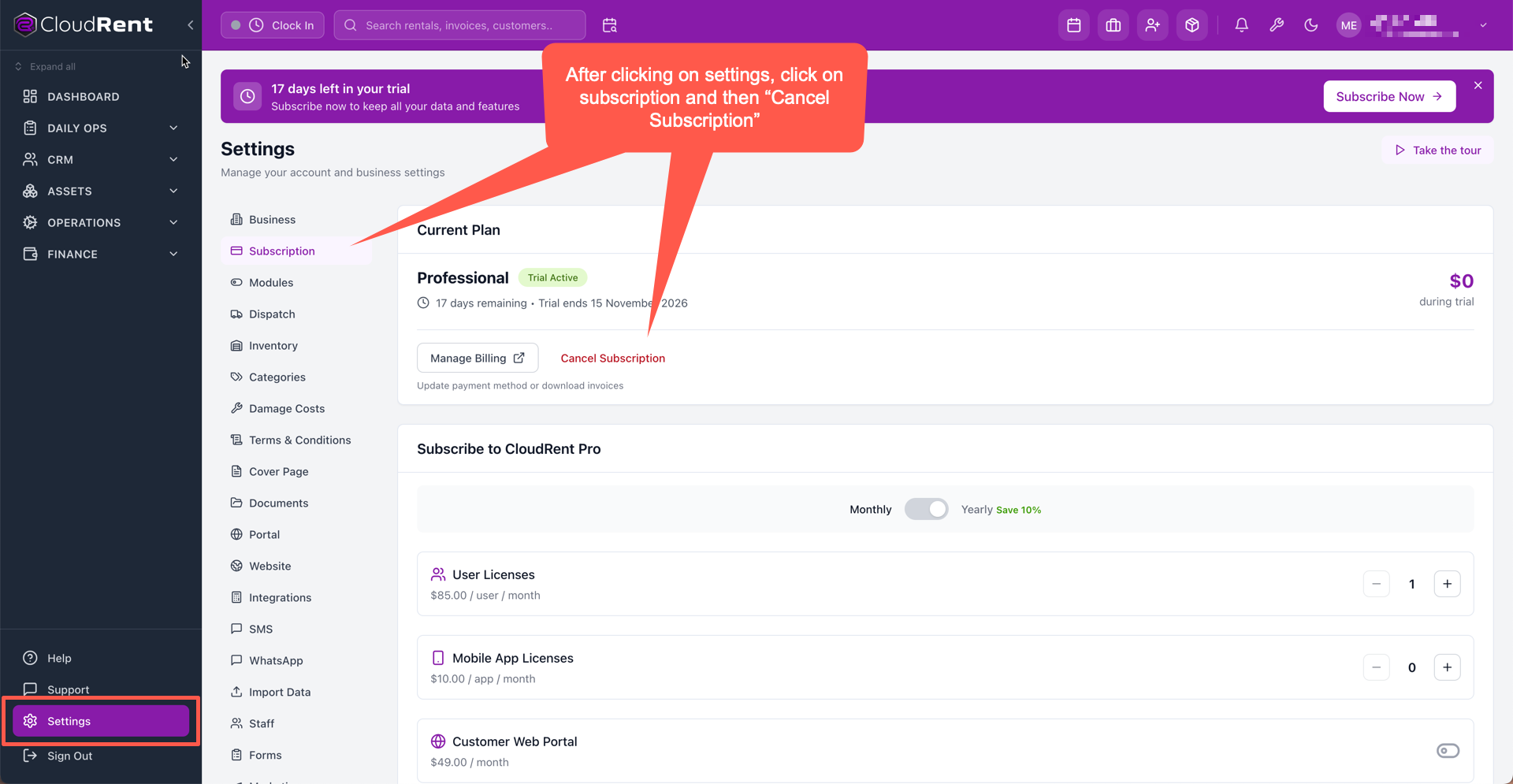
From the main CloudRent dashboard, click Settings at the bottom of the left-hand navigation menu.
Step 3: Select Subscription
On the Settings page, click Subscription from the settings menu.
This page displays your current subscription plan, billing information and subscription options.
Step 4: Cancel Your Subscription
Under the Current Plan section:
Locate the Cancel Subscription option next to the Manage Billing button.
Click Cancel Subscription.
Follow any on-screen instructions to confirm your cancellation.
Step 5: Verify Your Cancellation
Once you've completed the cancellation process, check your subscription status to confirm your request was successful.
Frequently Asked Questions
Can I cancel during my free trial?
Yes. You can cancel your subscription during your free trial using the same steps.
Can I reactivate my subscription?
If you decide to return to CloudRent, please contact our support team for assistance with reactivating your subscription.
What happens to my data after cancellation?
If you need a copy of your business data, please contact CloudRent Support before your subscription ends to discuss available export options.
Need Assistance?
If you experience any difficulties cancelling your subscription, our support team is here to help.
Click Support in the CloudRent navigation menu to contact our team.