Logistics Workflow & Partial Adjustments
This guide explains how to track your rental inventory through each logistics stage, from precheck to collection, and how to handle partial returns using quantity adjustments.
Overview
Every rental item in CloudRent Pro moves through a logistics workflow that tracks its real-world status. You can update items individually or in bulk, and handle partial returns when customers return some equipment before the rental ends.
Logistics Stages
Stage | Description |
|---|---|
Pending | Item is booked but not yet prepared for delivery |
Precheck | Item is being inspected and prepared before going out |
Deliver | Item is on the truck, en route to the customer |
On Hire | Item is with the customer and actively on hire |
Collect | Item has been picked up from the customer |
Postcheck | Item is back at the depot and being inspected for damage |
Updating Item Status
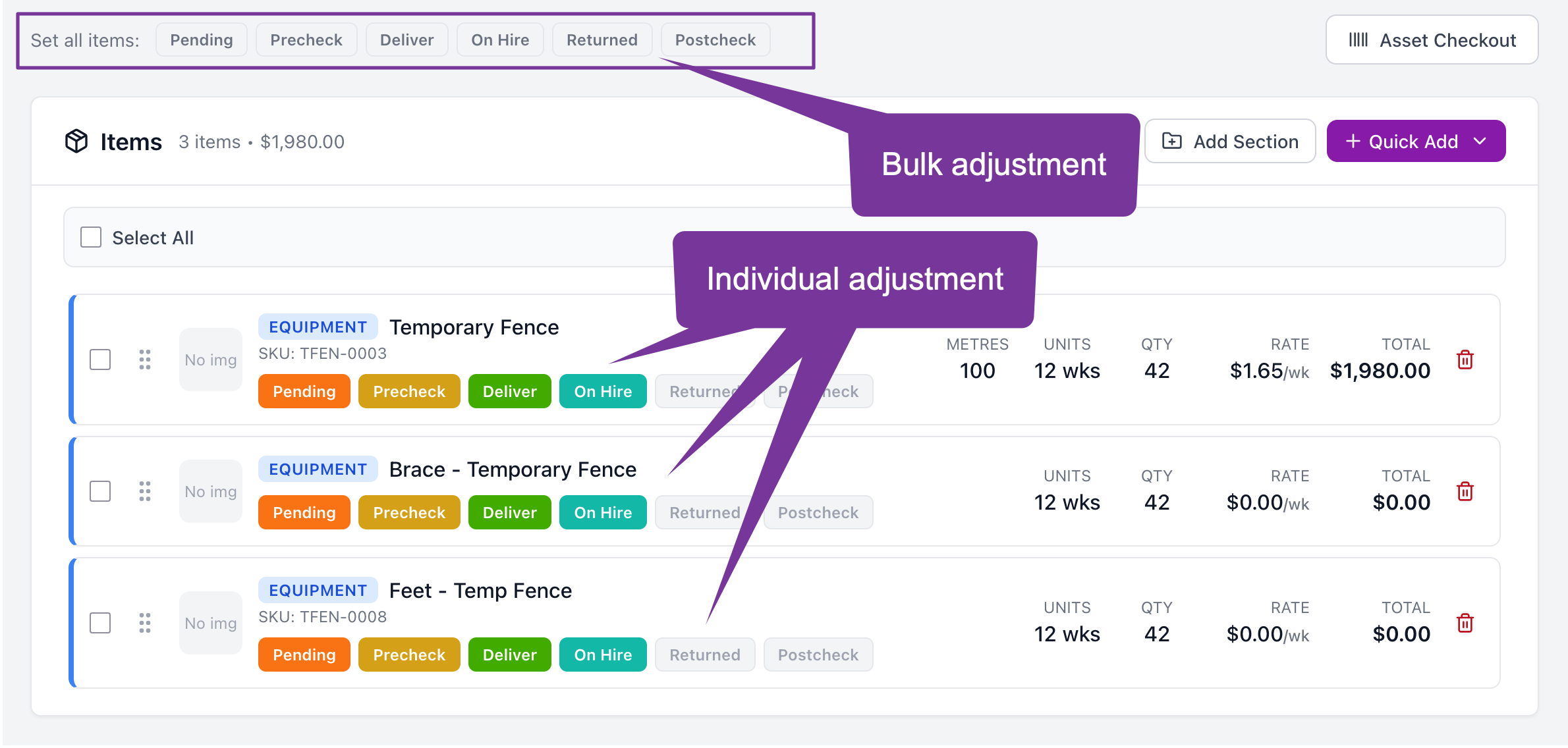
Open any rental and click the Inventory tab to see all items with their current logistics status.
Bulk Status Update
Use the Set all items buttons at the top of the inventory list to move all items to the same stage at once.
Open the rental and click the Inventory tab
Locate the Set all items row above the items list
Click the status button (Pending, Precheck, Deliver, On Hire, Collect, or Postcheck)
All items update to that status immediately
Tip: Use bulk update when your entire delivery goes out together. For split deliveries, update items individually.
Individual Item Update
Each item row has its own set of colored status buttons. Click any button to move that specific item to a different stage.
Find the item in the inventory list
Click the status button you want to set
Button turns solid to indicate the current status
Note: Green buttons indicate the item's current stage. Grey buttons show available stages you can move to.
Partial Returns with Quantity Adjustments
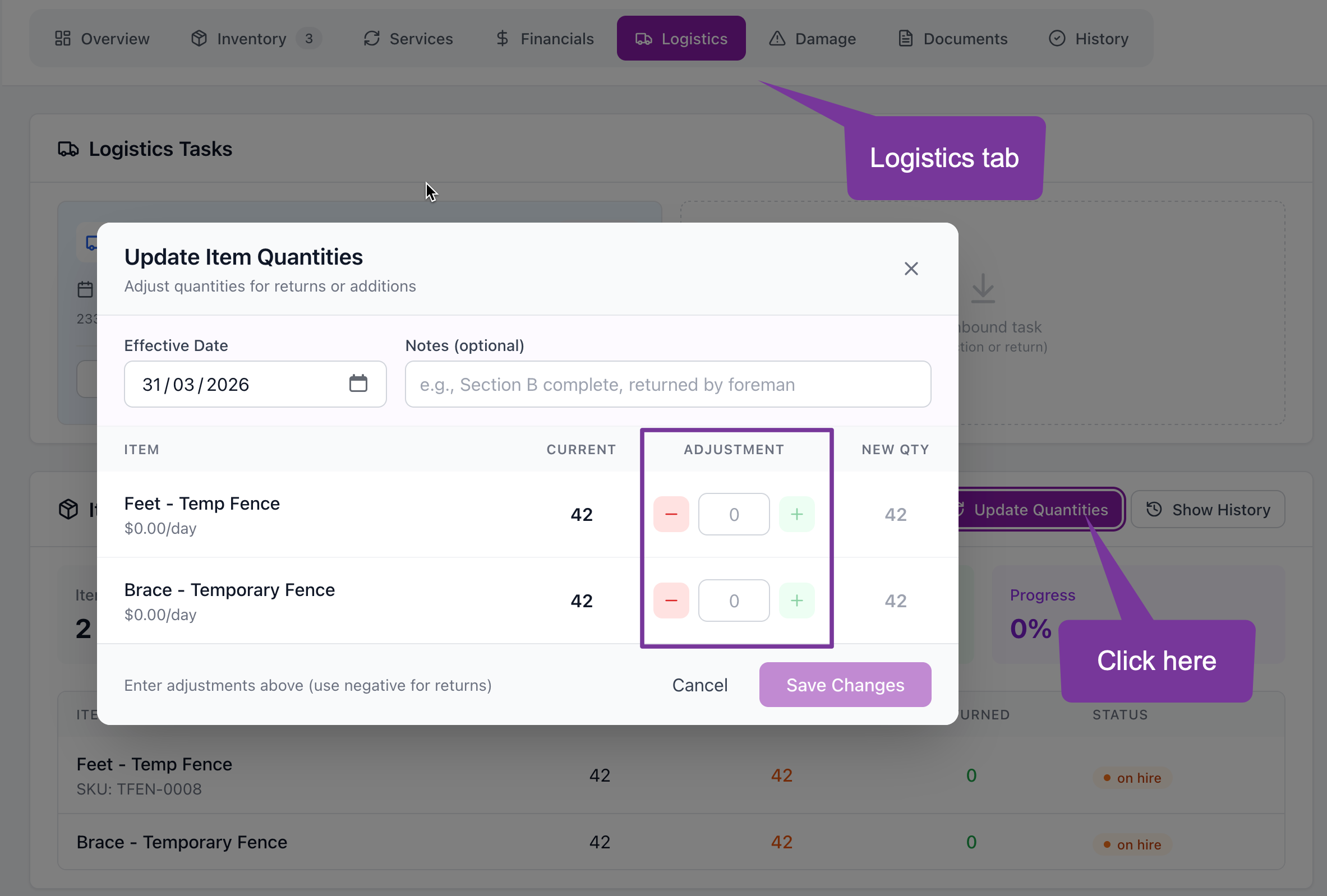
When a customer returns only some of the rented items (e.g., returning 50 fence panels out of 100), use the Update Quantities feature in the Logistics tab.
When to Use This Feature
Customer returns part of their order early
Additional equipment is delivered mid-rental
Quantity adjustments need backdating to a specific date
Tracking partial returns for accurate billing
Step 1: Open Logistics Tab
Open the rental from Day Book or search
Scroll down to the Logistics Tasks section
View Delivery and Collection cards showing scheduled tasks
Step 2: Update Item Quantities
Click Update Quantities button in the Item Quantities section
Set the Effective Date for when the return occurred
Add optional notes (e.g., "Section B complete, returned by foreman")
Enter adjustment amounts for each item
Click Save Changes to apply
Important: Use negative numbers for returns. For example, if a customer returns 20 fence panels, enter
-20in the adjustment field.
Understanding the Adjustment Modal
Column | Description |
|---|---|
Current | Number of items currently on hire |
Adjustment | Amount to add (+) or return (-) |
New Qty | Resulting quantity after adjustment |
Example:
Current: 100 panels
Adjustment: -25
New Qty: 75 panels remaining on hire
Step 3: View History
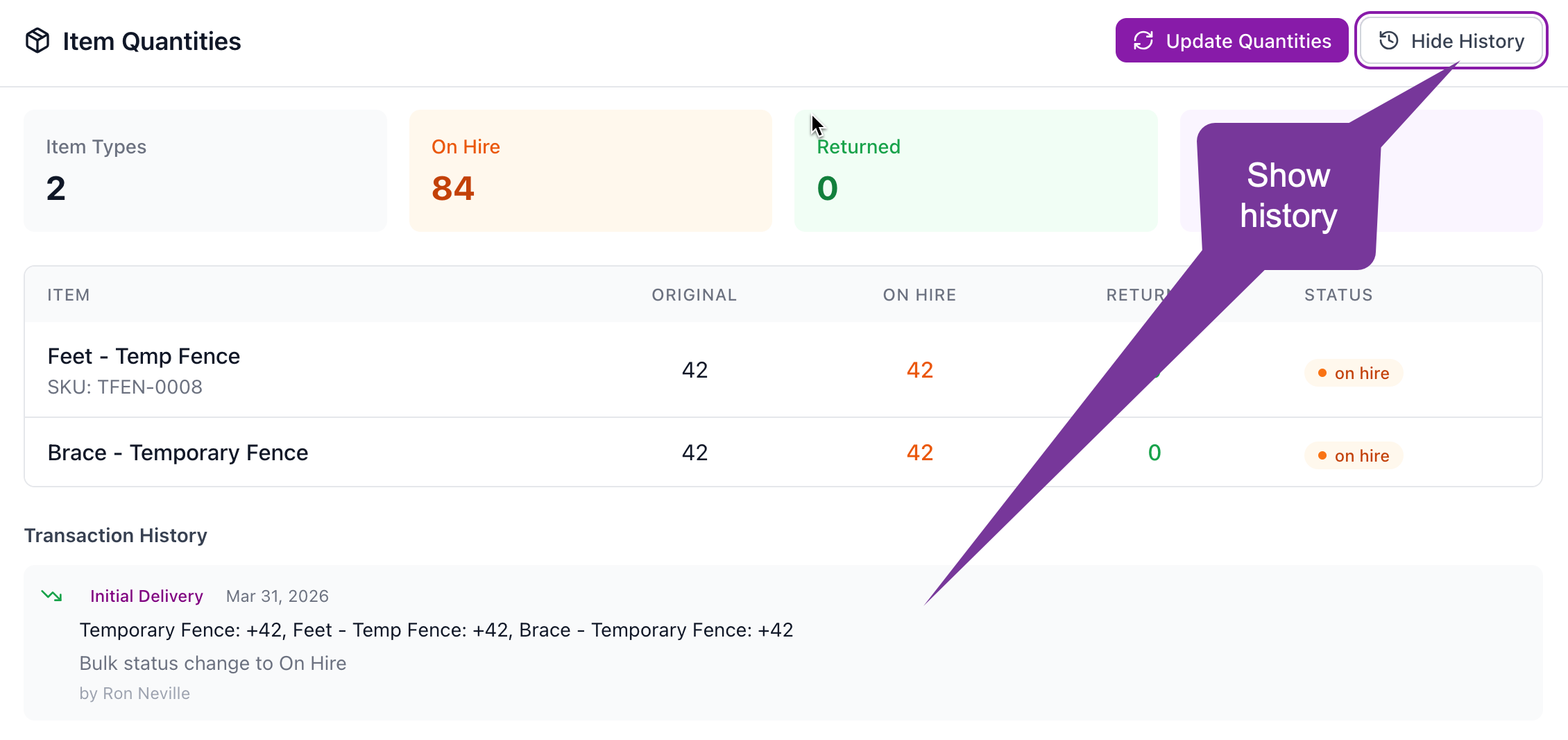
Click Show History to see all quantity adjustments made on this rental, including dates, amounts, and notes.
Viewing in Dispatch
Each Delivery and Collection task card includes a View in Dispatch button. This opens the task in the Dispatch module where drivers can be assigned and routes planned.
Click View in Dispatch on the task card
Assign a driver to the delivery or collection
Complete the task when the job is done
Tips for Efficient Logistics
Update on the Go
Update item status from your phone when loading the truck or making deliveries.
Use Notes for Adjustments
Always add notes when making partial returns to track why quantities changed.
Backdate When Needed
Set the effective date to match when the return actually happened for accurate billing.
Check History Before Finalising
Review the adjustment history to ensure all partial returns are recorded before finalising a rental.
Frequently Asked Questions
How do partial returns affect billing?
When you reduce the quantity using the Update Quantities feature, billing is adjusted from the effective date. Items returned early stop accruing charges from that date.
Can I add more items mid-rental?
Yes! Use positive numbers in the adjustment field to add items. For example, if the customer needs 10 more panels, enter +10.
What if I make a mistake in the adjustment?
Click Show History to see all adjustments, then create a correcting adjustment. For example, if you accidentally returned 30 but should have been 20, add +10 to correct it.
Does the status affect availability?
Yes. Items marked as Postcheck or earlier stages are counted as returned and become available for new bookings from the effective date.
Can I update status from the mobile app?
Yes. The Inventory tab works on mobile devices. Tap the status buttons just like on desktop.