Staff Profiles
Staff profiles store all the information about your team members — contact details, employment type, roles, and calendar preferences. Good staff profiles make rostering and communication easier.
Creating a Staff Profile
Go to Settings bottom left sidebar
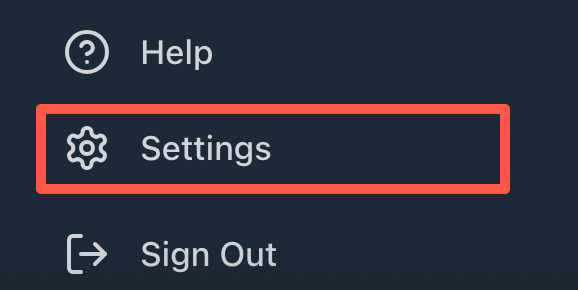
Click on Staff in the list
Click "Add Staff"
Fill in staff details
Set their role
Click Save
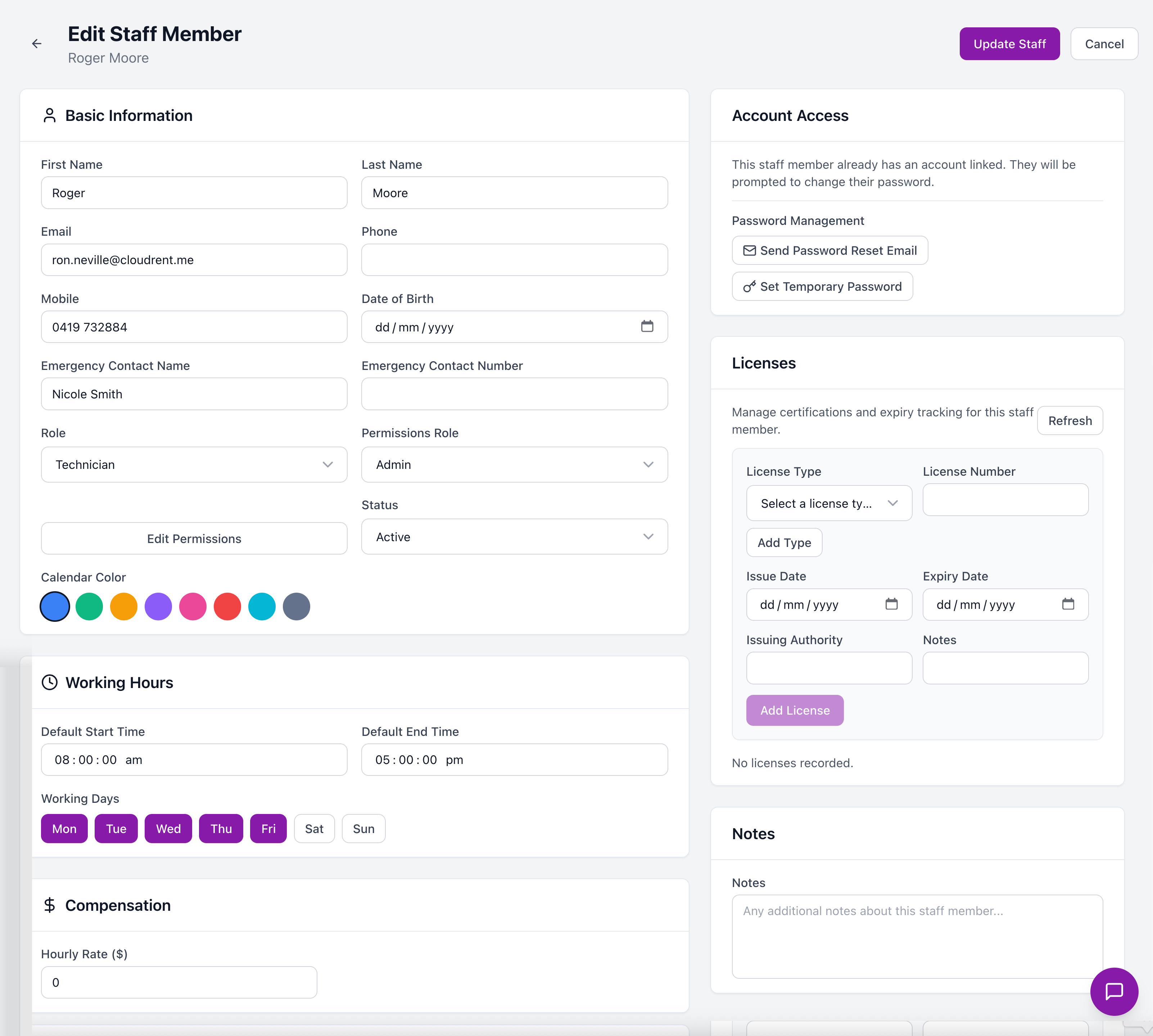
Staff Information
Required vs Optional Fields
✓ Required
First Name
Last Name
Email Address — Used for login and notifications
Role — Determines permissions
○ Optional
Phone Number
Profile Photo
Employment Type
Start Date
Calendar Colour
Emergency Contact
Employment Types
Type | Description |
|---|---|
Permanent | Full-time or part-time ongoing employees |
Casual | Casual employees without guaranteed hours |
Contractor | Independent contractors, not employees |
Employment type is for your records and doesn't affect system functionality.
Adding a Profile Photo
Click the photo placeholder
Upload an image (JPG, PNG)
Crop if needed
Save
Photos appear on rosters, job assignments, and chat, making it easy to identify team members.
💡
Tip: Use clear headshots for profile photos. Avoid group photos or images that don't clearly show the person.
Calendar Colour
Each staff member can have a colour for roster and calendar displays:
Click the colour selector
Choose a colour
Save
This colour identifies their shifts on the roster calendar.
Contact Information
Emergency Contact
Record an emergency contact for workplace safety:
Contact name
Relationship
Phone number
Address
Store home address for HR records and route planning.
Staff Notes
Add internal notes about staff members:
Training completed
Performance notes
Special skills or certifications
Preferences or restrictions
Notes are visible only to managers and admins.
Deactivating Staff
When someone leaves:
Open their profile
Toggle "Active" to Off
Enter end date
Save
Deactivated staff:
Can't log in
Don't appear in assignment lists
Remain in historical records
ℹ️
Note: Never delete staff profiles — deactivate them instead. This preserves history and audit trails.
Multiple Roles
Staff can have capabilities beyond their primary role:
Open staff profile
Find "Capabilities"
Add additional skills
For example, a Driver who's also forklift-certified can be flagged for both.
Tips for Staff Profiles
📝 Complete All Fields
The more information you have, the easier scheduling and communication becomes.
💰 Keep Photos Current
Update photos when people's appearance changes significantly.
📂 Document Qualifications
Record all relevant licences and certifications in the profile.
🎯 Use Notes Wisely
Notes should be professional and factual — they're business records.